
There’s no excuse, dear fellow writer: your books not bought on Amazon also deserve a place on your Kindle. Here’s a guide in full detail, step by step, so you master the process like a marchioness of writing.
Don’t have a Kindle? No problem!
Here I explain in full detail how to install the app and turn any digital device into a Kindle book reader.

What is “Send to Kindle”?
It’s Amazon’s personal service that lets you send documents to your Kindle via web, desktop app or email, store them in your Amazon library and sync them with any device or Kindle app. They also support formats like PDF, DOC/DOCX, EPUB, TXT, RTF, HTML, PNG, JPEG, GIF, BMP — as you can see, there are plenty of options. ♥
How to set up your Kindle to send your PDF, DOC and EPUB files? (the basis of the transfer)
a) Find your “@kindle.com” email
- Go to Amazon → “Account & Lists” → “Content & Devices” → “Devices” tab.
- Select your Kindle; there you’ll see its email address, something like
[email protected]
b) Authorize your email address
- Within that same section, go to Preferences → Personal Document Settings.
- Add your personal email, from which you’ll send the files.
What are the methods to send your PDF, DOC and EPUB files directly to your Kindle?
This method is simple and direct:
#1 By email
- Open your email client and create a new message.
- Attach your file (PDF, DOC, EPUB…).
- Send it to your
@kindle.comaddress.- Tip: put “convert” as the subject if you want it to automatically convert a PDF into a reflowable format compatible with Kindle Amazon Kindle Direct.
- You’ll get a confirmation email; accept it to complete the delivery.
- Make sure your Kindle has internet and sync it (in settings → sync).
📋 Limitations:
- Up to 25 files per email; limit of 50 MB total.
- If you have heavier or larger files, better send them one by one.
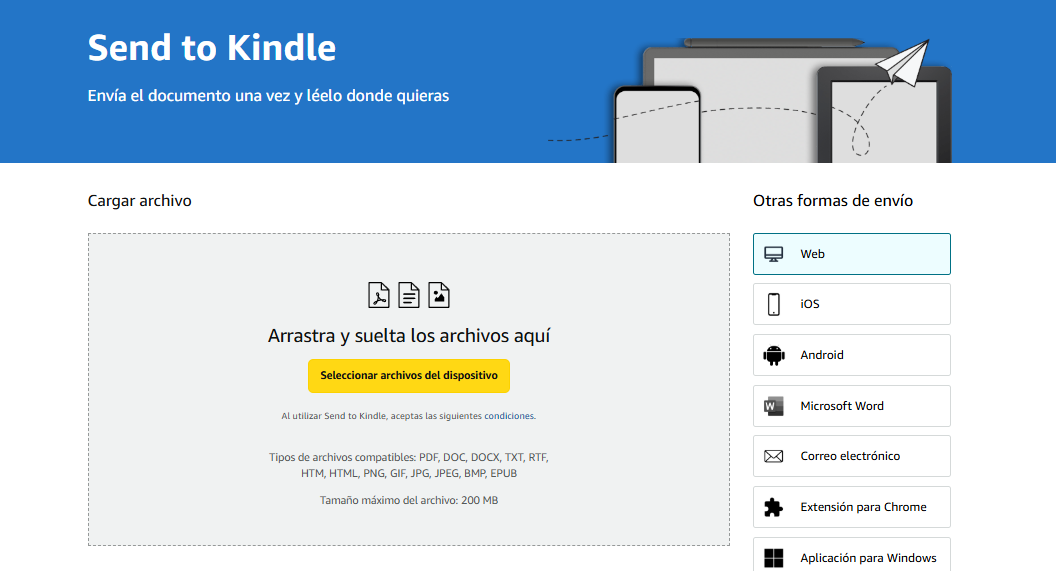
#2 Through the web: “Send to Kindle for Web” (this is my favorite)
- Go to the [official link] provided:
https://www.amazon.com/sendtokindle - Click on the yellow area or drag your files (PDF, EPUB, DOC…).
- Select the destination device.
- The system will convert and import the files into your library.
#3 Using the desktop app
Available for Windows and Mac:
- Download and install “Send to Kindle” from Amazon (Windows or Mac).
- Sign in with your Amazon account.
- Use the “Send to Kindle” button or drag files directly into the app.
- Or you can even right-click on the file → “Send to Kindle”.
- View and select the destination device and send. The file uploads, converts and is added to your library.
#4 From mobile (Kindle app iOS/Android)
- Open any app where you have the file (email, file manager).
- Tap “Share” → select “Kindle” or “Send to Kindle”.
- The file is imported directly into your Kindle app and then, if you use a physical Kindle, it syncs.
(Relatively more complicated than email, so only if you’re already on your phone.)
Compatible formats and how they behave
These are accepted directly:
- EPUB → converted to Kindle format (AZW3, KFX)
- PDF → can be kept as an “image” or converted if you put “convert”
- DOC/DOCX, RTF, HTML, TXT → converted automatically
- Images: PNG, JPEG, GIF, BMP are also convertible
Note: Legacy formats (MOBI/AZW) are no longer compatible via Send to Kindle; the system prefers EPUB.
Alternative methods: USB and Calibre
USB connection (manual)
- Connect your Kindle via USB to your computer.
- In the file explorer, open the
documentsfolder. - Copy and paste the file (no conversion).
- Disconnect it safely.
- It works for large files with no size limit.
- They are not added to your Kindle cloud nor converted automatically.
Using Calibre
Calibre is the most powerful tool for converting formats (EPUB, MOBI, AZW3, etc.)
- Import your EPUB into Calibre.
- Choose the output format (AZW3 or KFX).
- You can set up sending by email directly to your Kindle.
- Send the already-converted file → it will look flawless and compatible.
Other important tips:
- If you send a PDF and want to be able to adjust the font size, put “convert” as the subject.
- Huge files or a thousand PDFs? Use USB or ZIP.
- Want well-formatted EPUBs? Use Calibre before sending.
- Always check that your documents are in the right folder (
documentson USB) or in the online Kindle library. - If they don’t show up in the cloud, go to Content & Devices and sync manually.
Summary of all the methods to send PDF, DOC and EPUB directly to your Kindle
Common mistakes and solutions
- It doesn’t show up in the library:
- Check that the file is compatible.
- If you used email, check that your account is authorized and click on the verification email.
- It doesn’t open or looks wrong: PDFs sometimes don’t flow well → use “convert” so it adapts. Badly formatted EPUBs can turn into sumptuous graphics: use Calibre to fix them.
- Very heavy files: ZIP + send by email or direct USB
- It doesn’t sync: make sure your Kindle is connected to the internet and press “Sync” manually.
Don’t let anyone sell you the idea that only ebooks bought on Kindle deserve to be there
With this guide you have all the tools: web, app, ZIPs, Calibre and even USB. If you write your own novels, campaigns, interesting articles, study books, work this process with style until it becomes your sending ritual.
Invest five minutes in setting up the Kindle email, install the app or Calibre. Then, drag it all, send it all, read it all. That simple.
And when your Kindle is saturated with your texts, just remember to sync, organize, and enjoy!
By the way, if this content was useful to you, remember to share it ♥